
Created by artists,
for artists.
Every tool within quick reach.
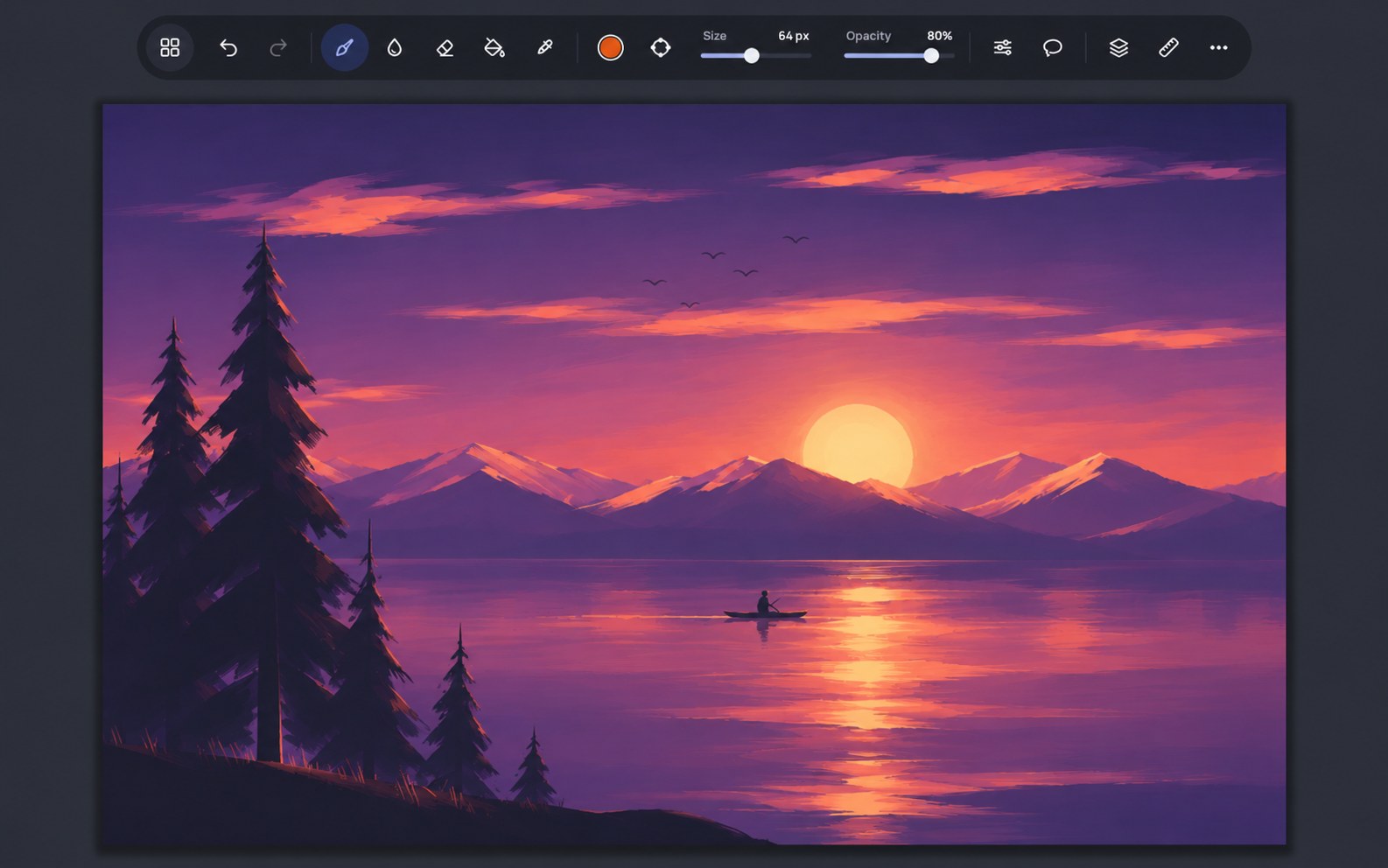
Everything on one screen.
Brushes, colors and layers, one tap away.
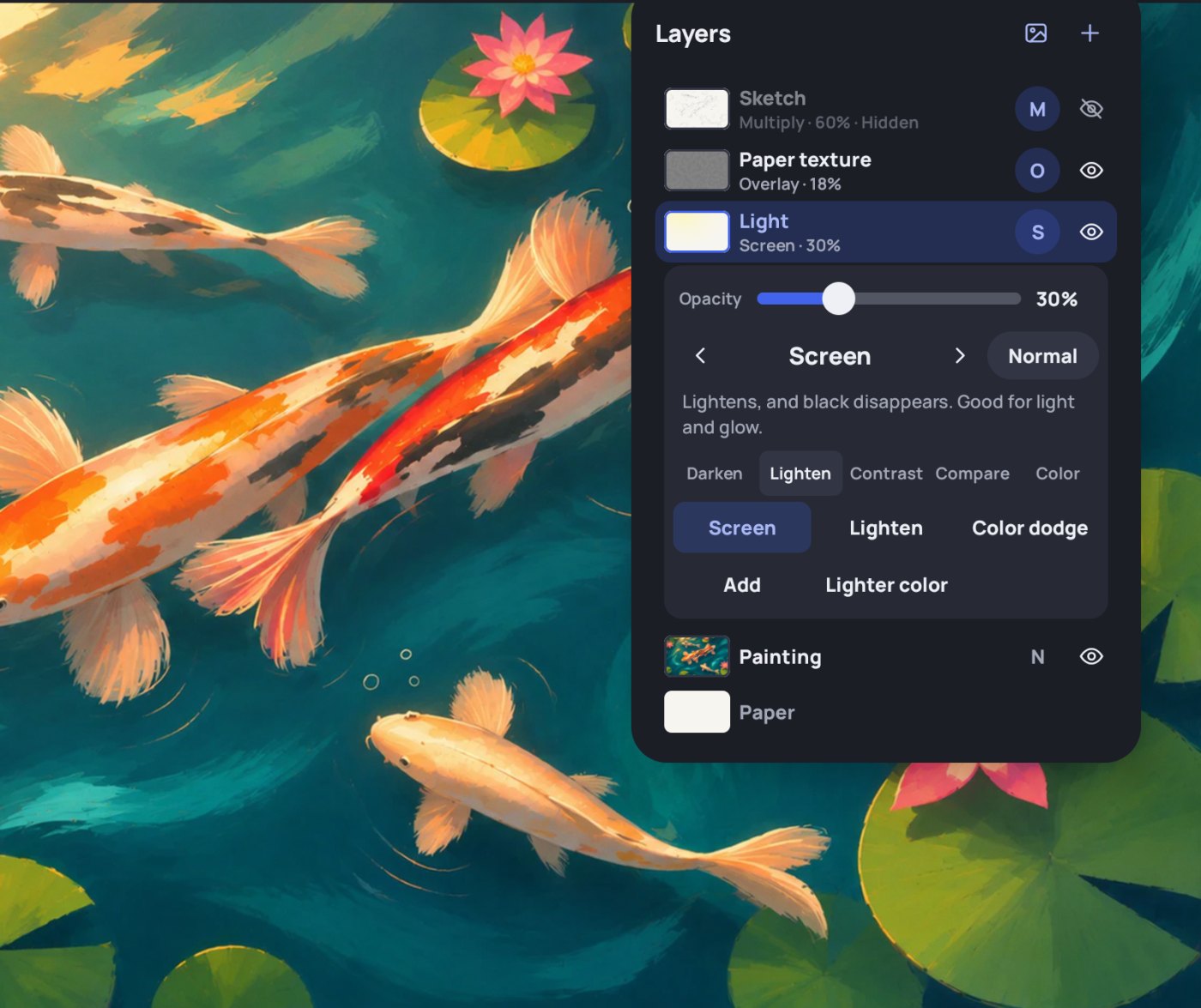
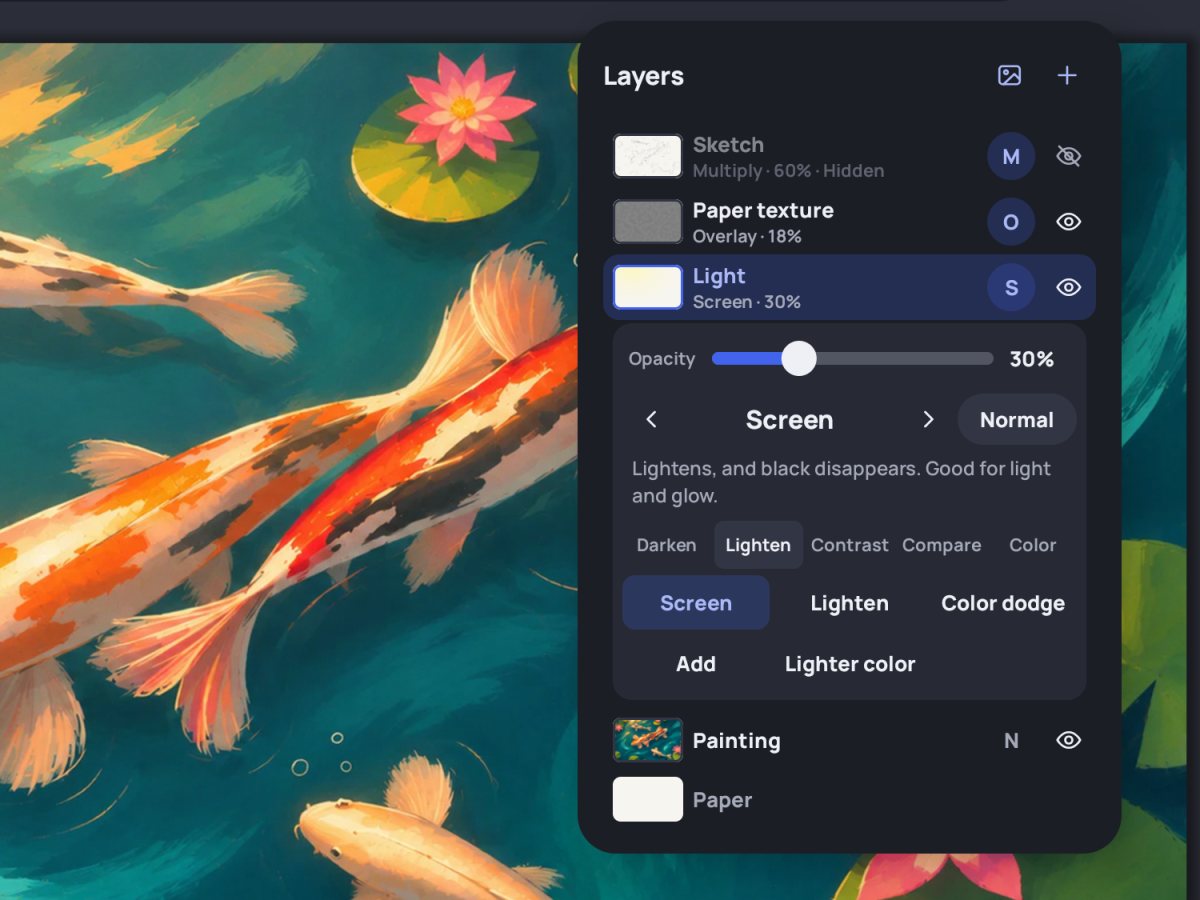
Blend modes, explained.
Each mode says what it does.
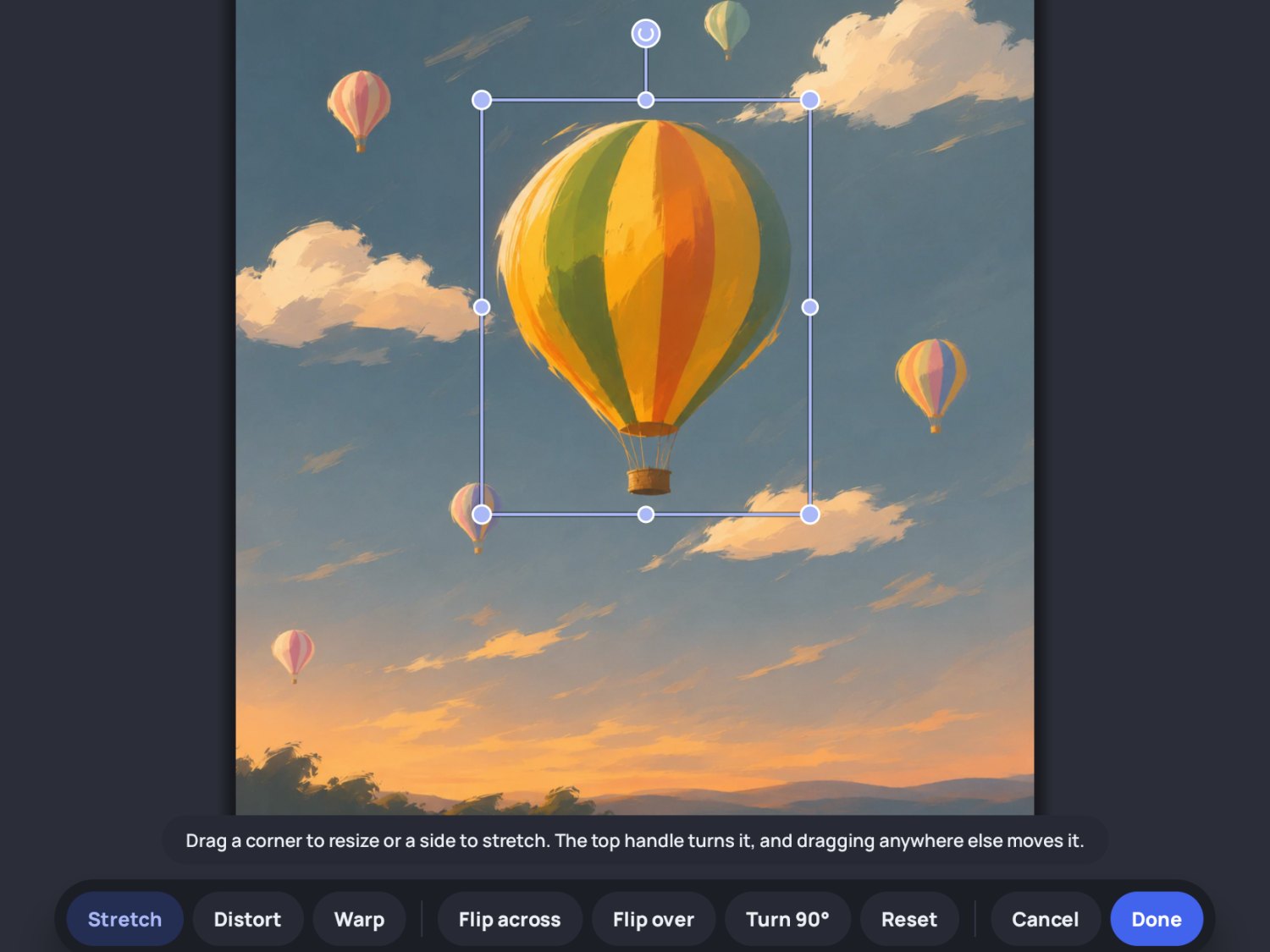
Select, then reshape.
Move, stretch or warp any part.
Get inspired.
Changelog
What’s new.
Sketchemy · now on Google Play
Sign up for the newsletter.
Only news about Sketchemy. Unsubscribe anytime. Privacy policy
The whole toolkit
Features
Every tool within quick reach, and each one tells you what it does.
Layers & blend modes
Blend modes that explain themselves.
Stack your work in layers. Pick a blend mode and read what it does in plain words.
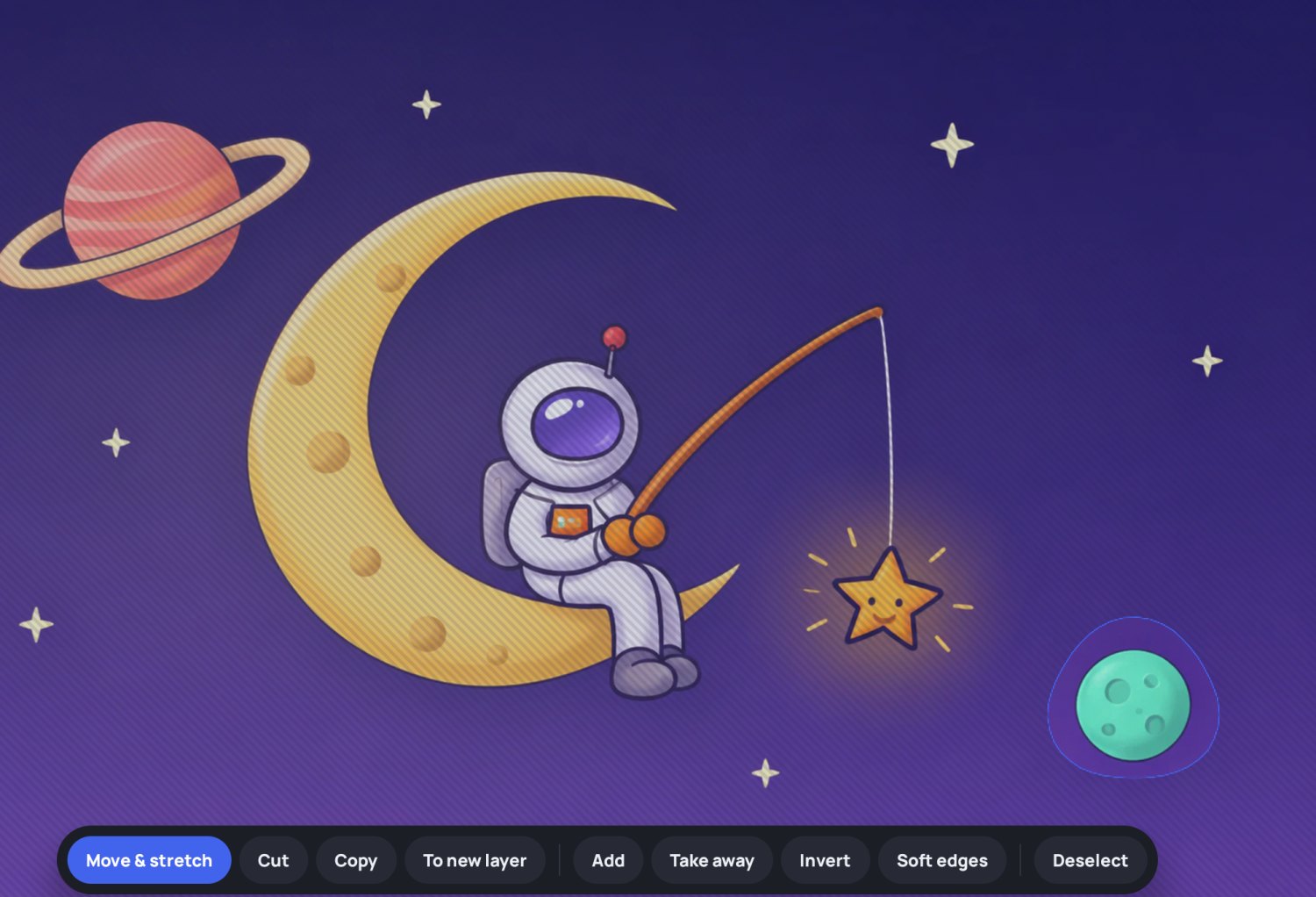
Selection & transform
Select it, then reshape it.
Draw around any part, then move, stretch, distort or warp it. Or copy it onto a layer of its own.
Brushes
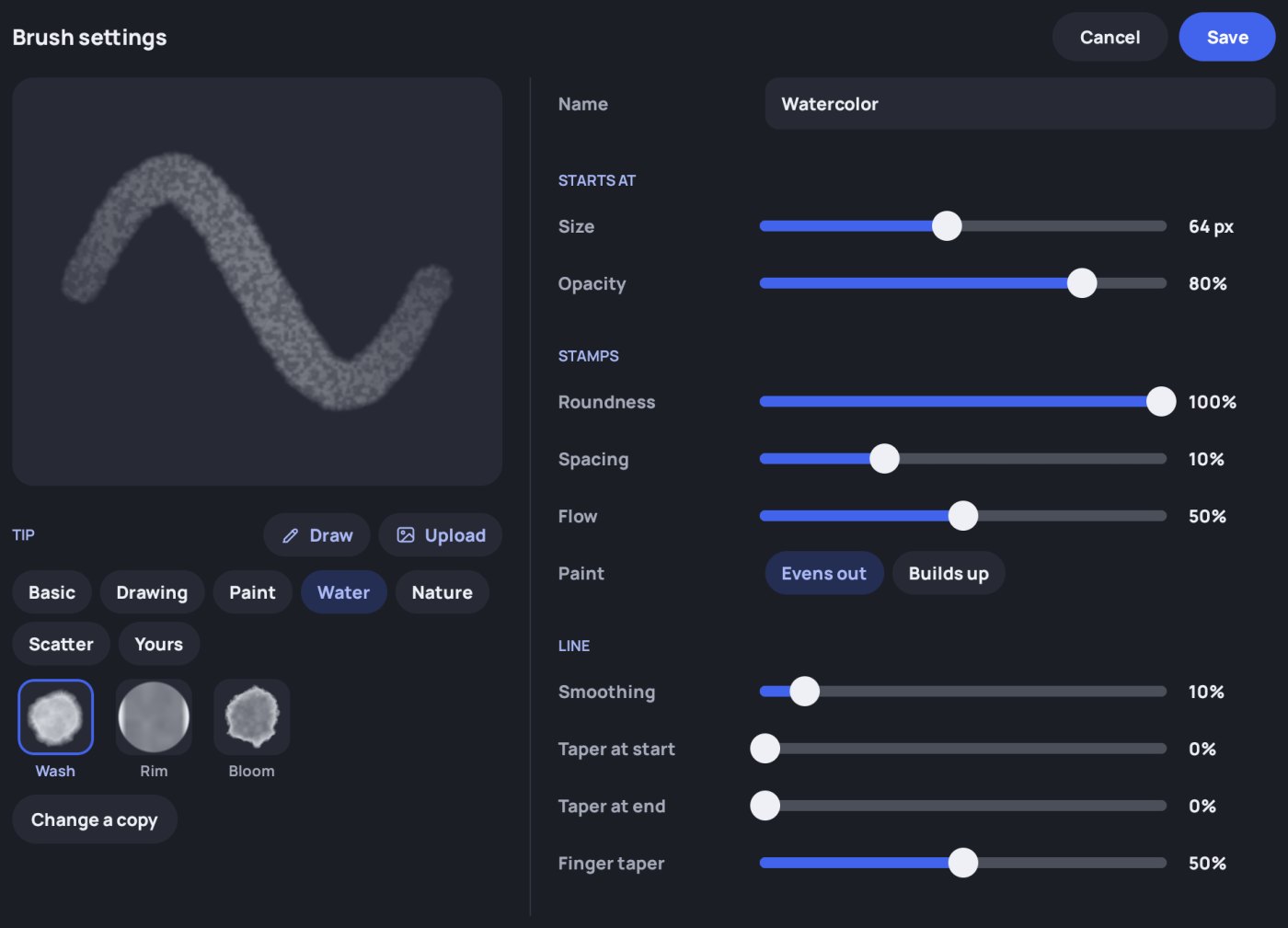
Make your own brushes.
Pick a tip, draw one, or start from a picture. Then tune size, spacing, flow and taper until it feels like yours.
References
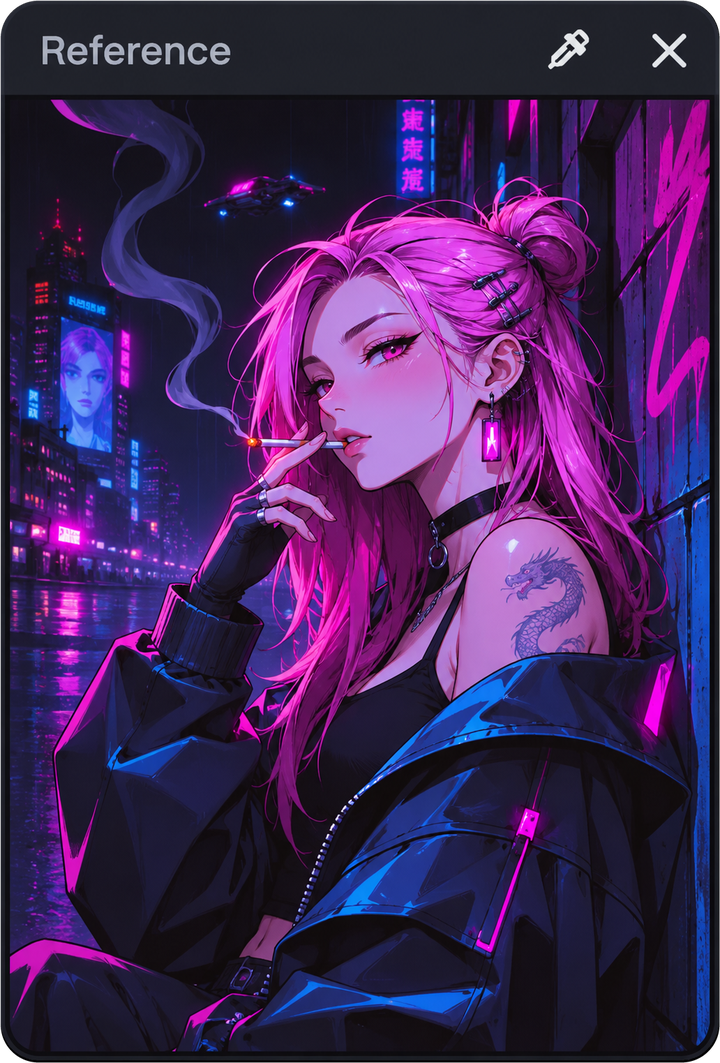
Keep your reference in view.
Open a reference in a small floating panel and keep it beside your canvas. Pick colors straight from it with the color picker.
Organize
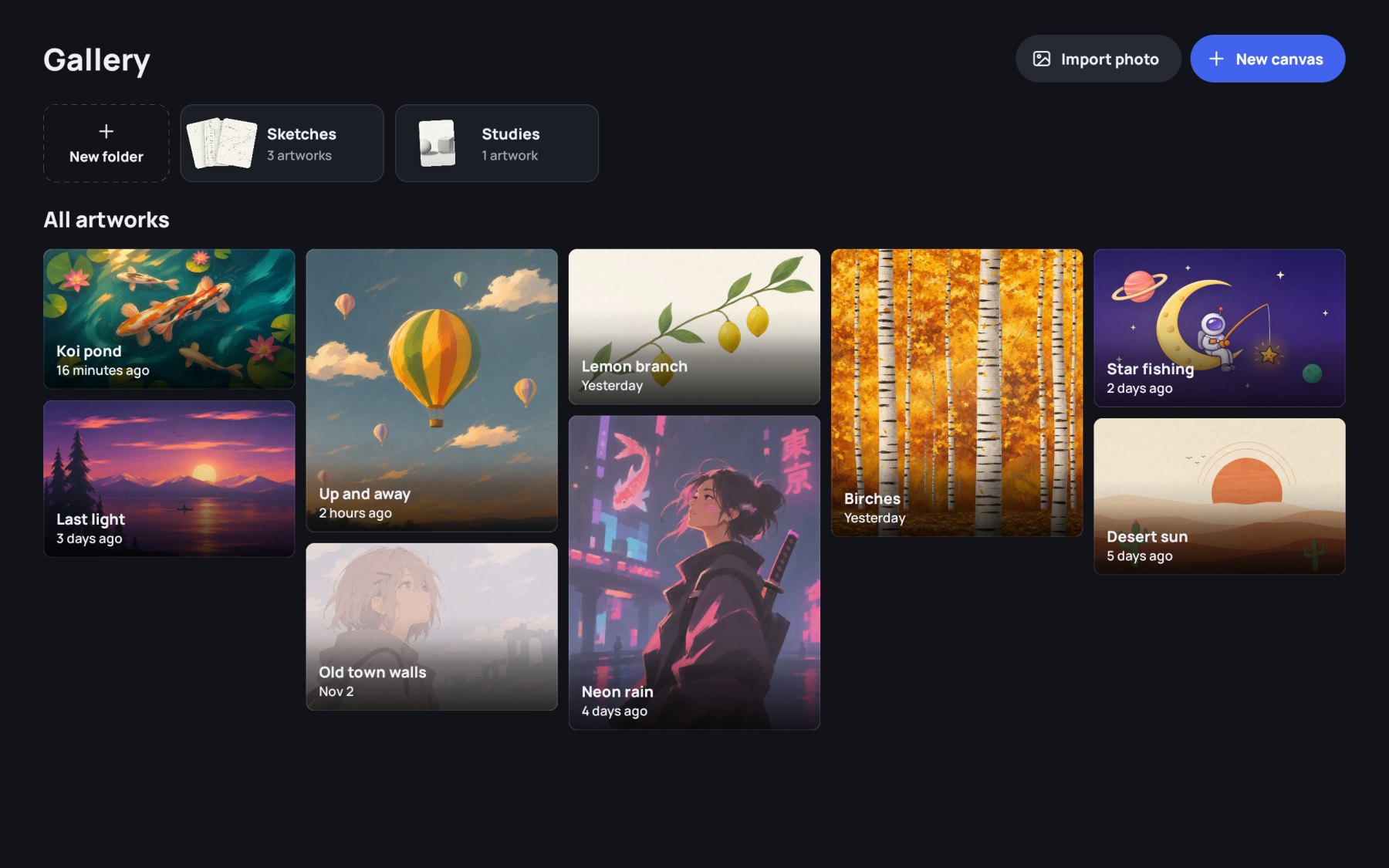
Your work, in folders.
Sort your work into folders like Sketches or Studies. Start a new canvas, or import a photo and work on top of it.
Effects
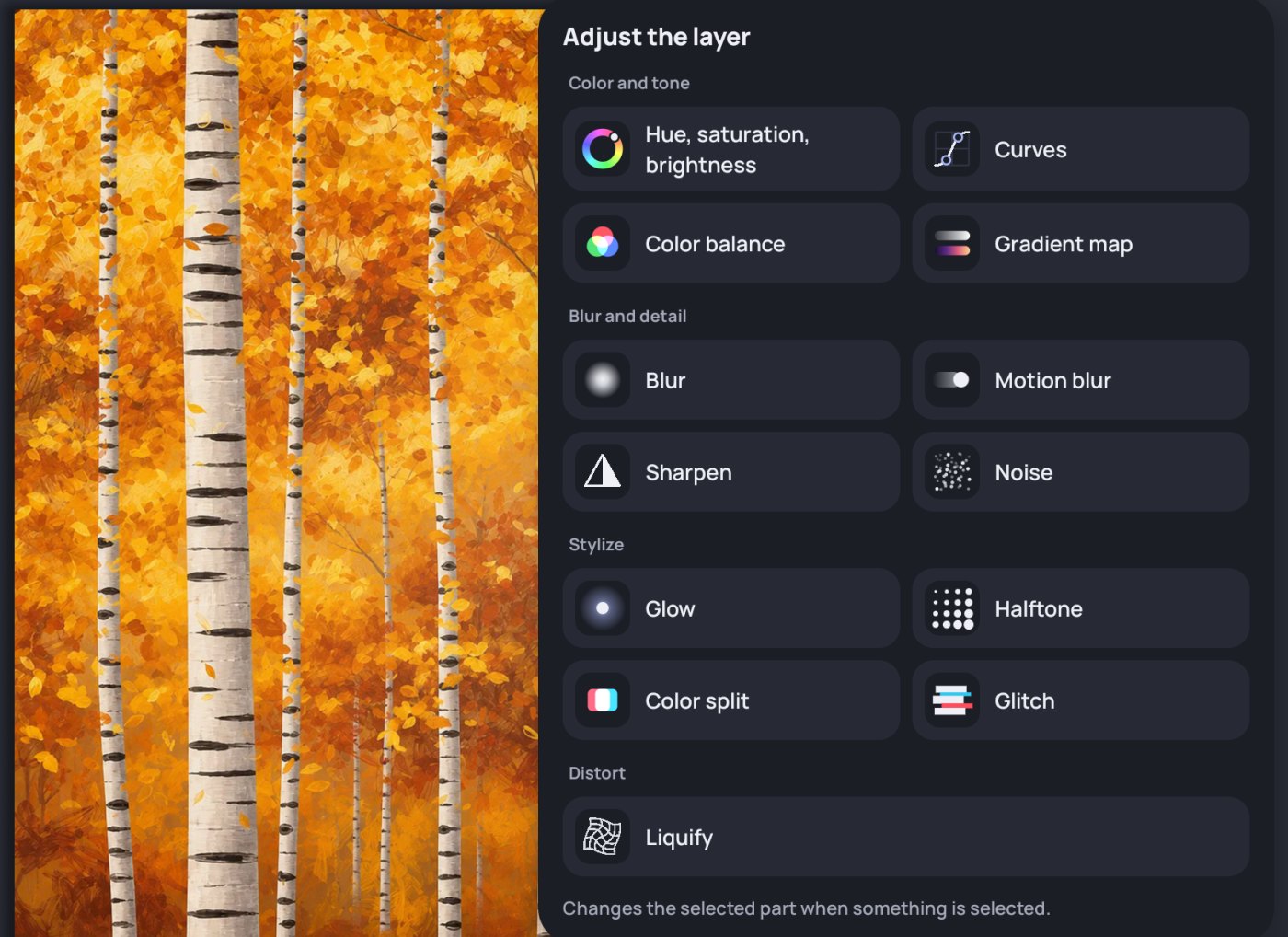
See every effect live.
From blur and curves to halftone and glitch. Move a slider and the canvas changes before you apply it.
Export & share
Share it with the world.
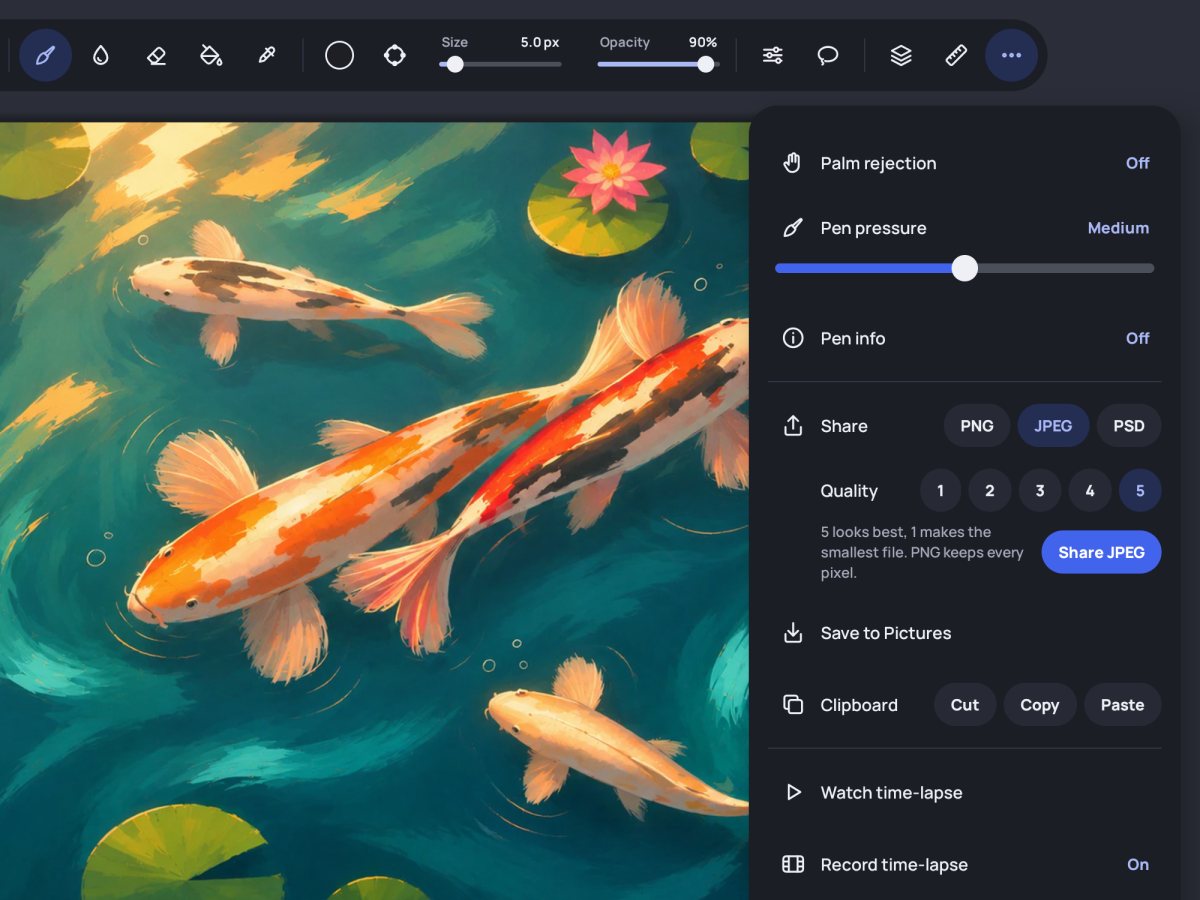
Export your painting, or export a video of it, and post it wherever you share your work.
One bar, every tool.
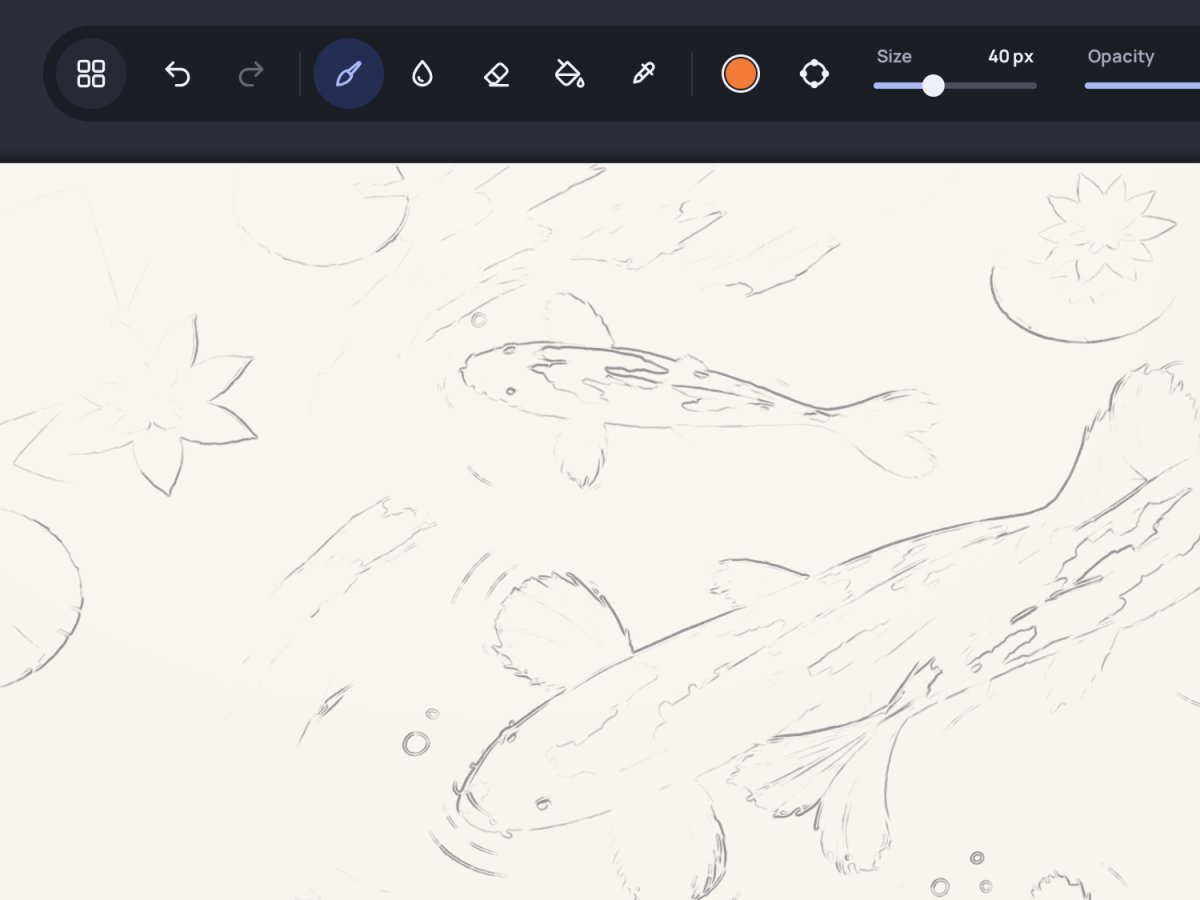
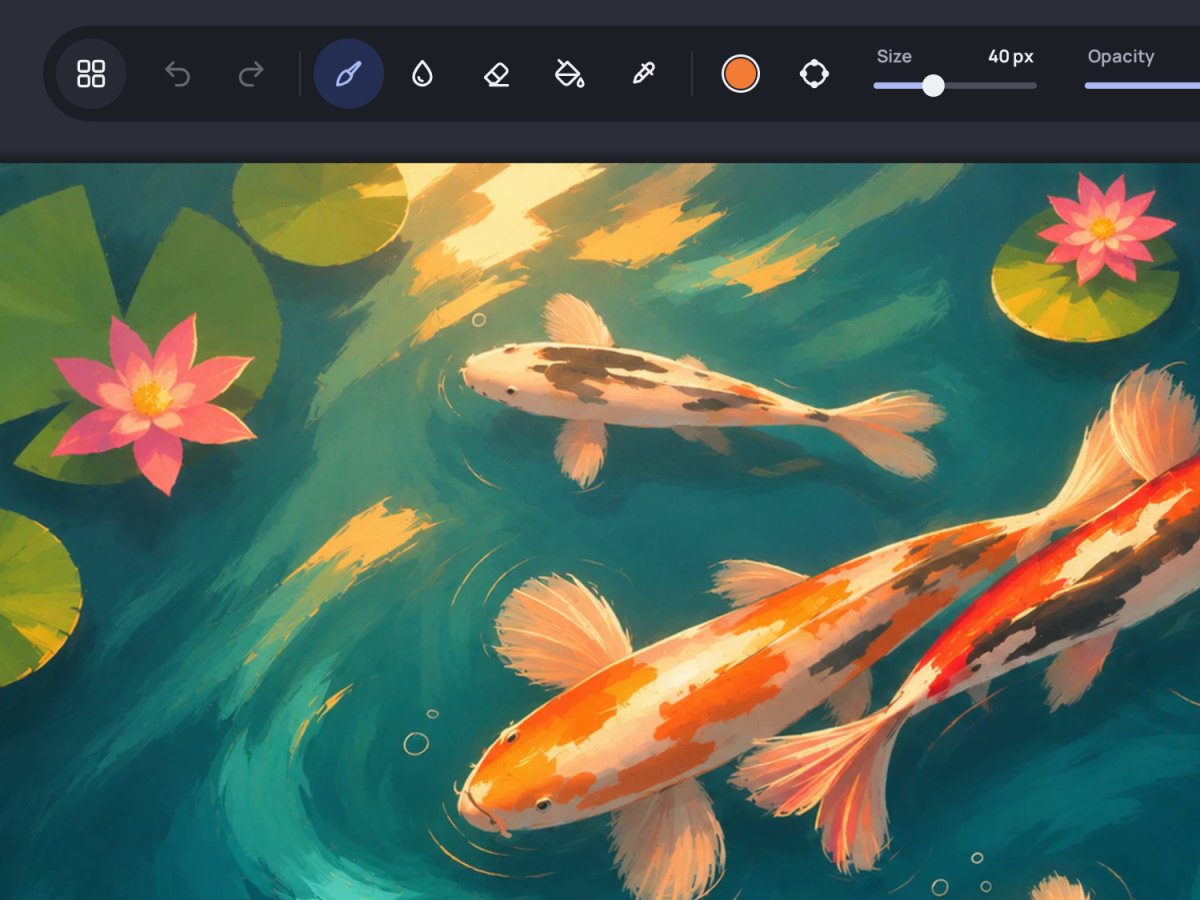
Brush, smudge, erase, fill and color, with size and opacity right beside them.

Quick guide
Get Started
Your first painting in seven steps. Every tool sits in one bar.
Your first painting
From blank canvas to sharing it.
Seven steps. Every tool you need sits in the top bar.
- 1
Start a canvas
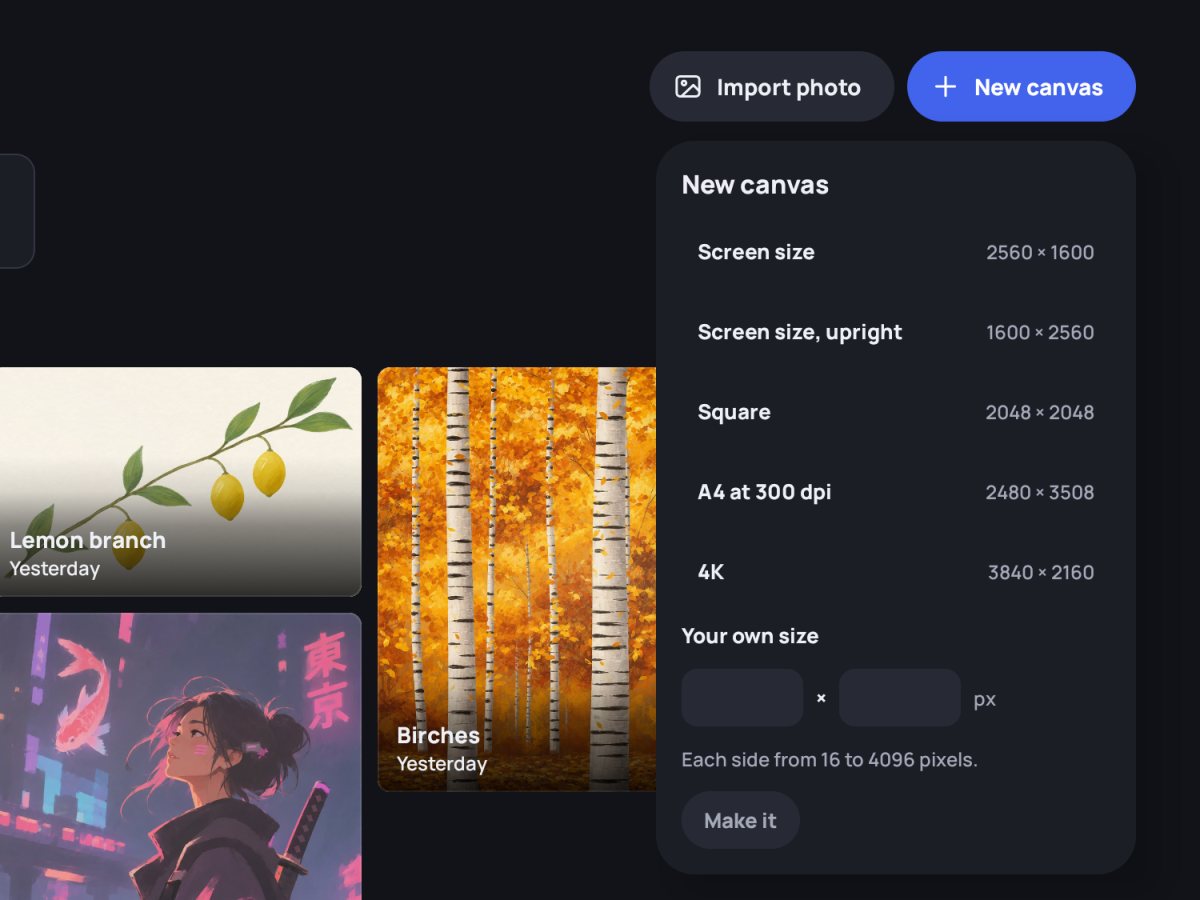
In the gallery, tap New canvas. Or tap Import photo to start from a photo.
- 2
Pick your tool and color
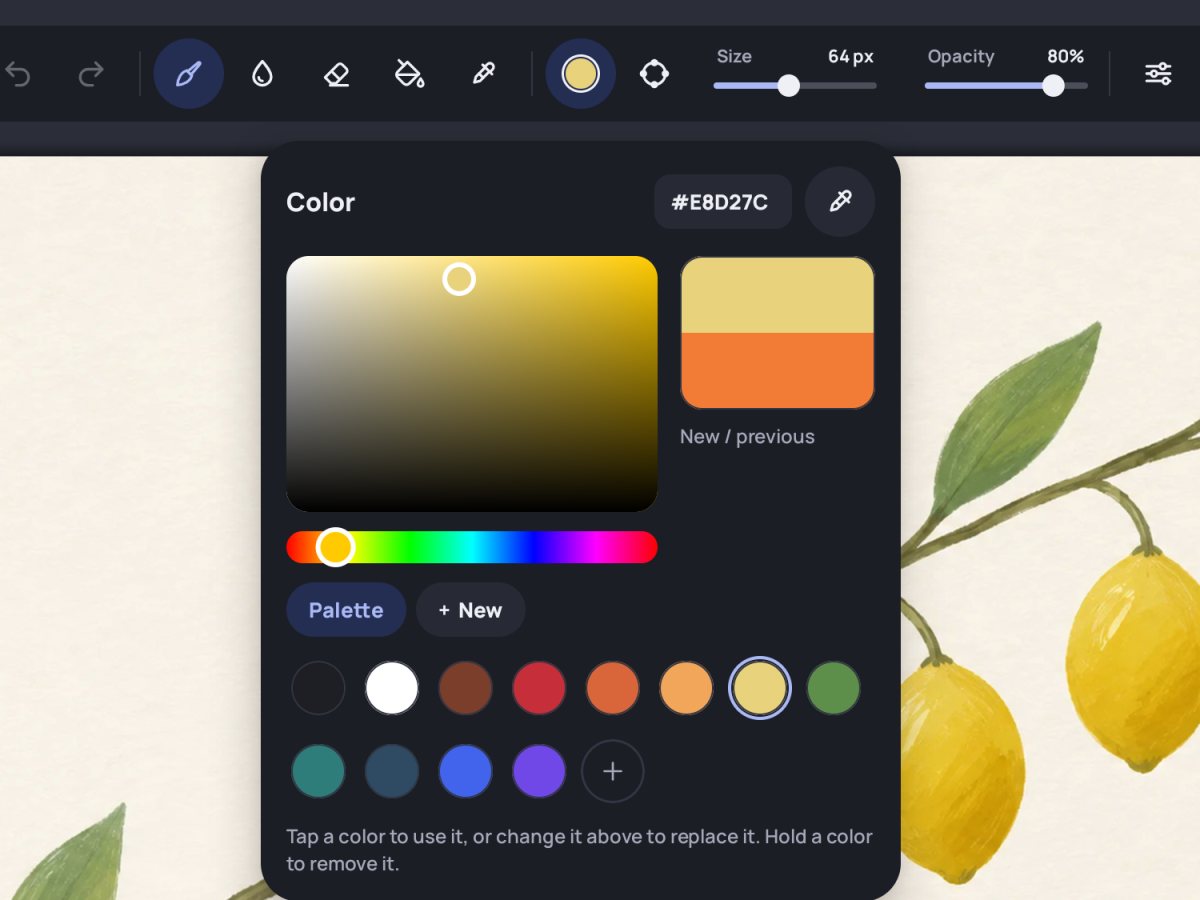
Choose a brush in the top bar, set Size and Opacity, then tap the color circle.
- 3
Start your work
Sketch loosely first. Tap with two fingers to undo, three to redo.
- 4
Add more layers
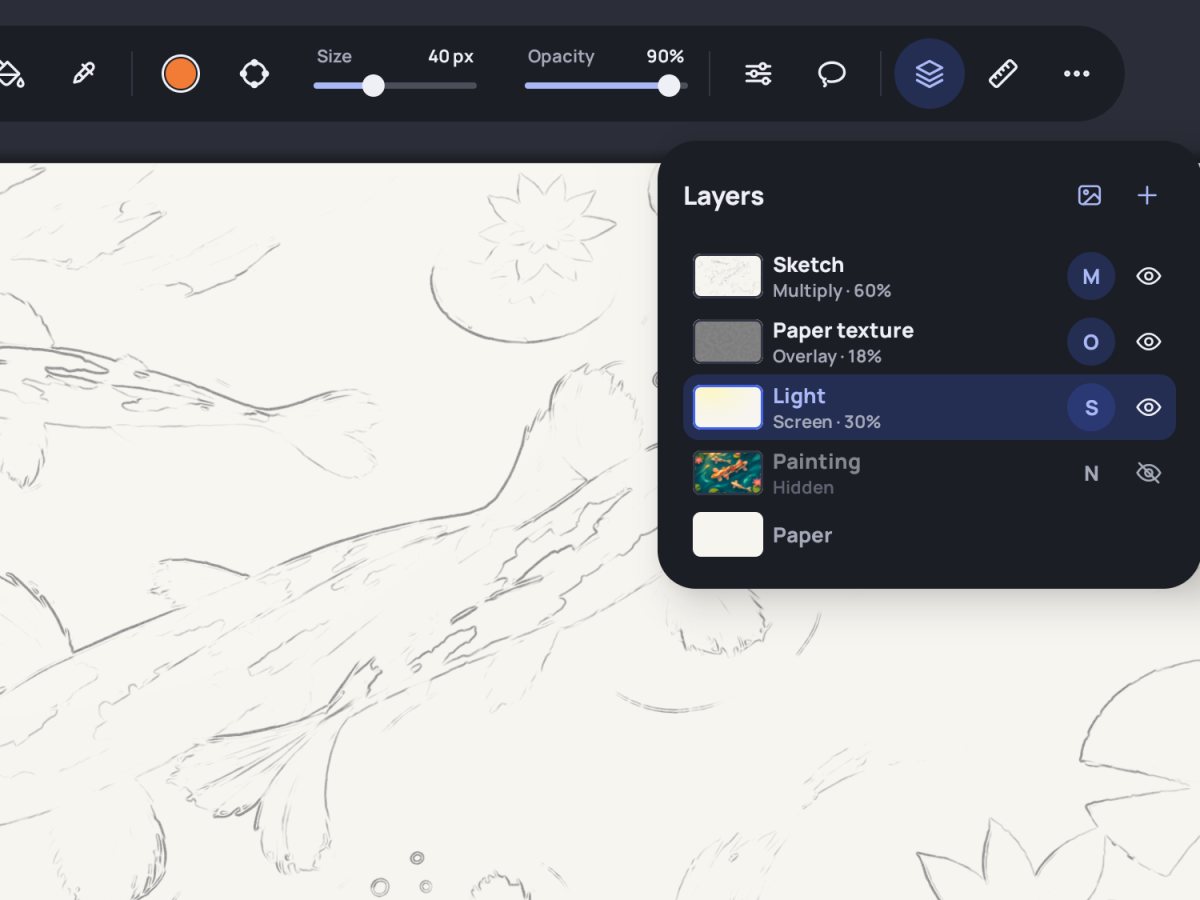
Open Layers and tap + for a new one. Keep sketch, line and color apart.
- 5
Try a blend mode
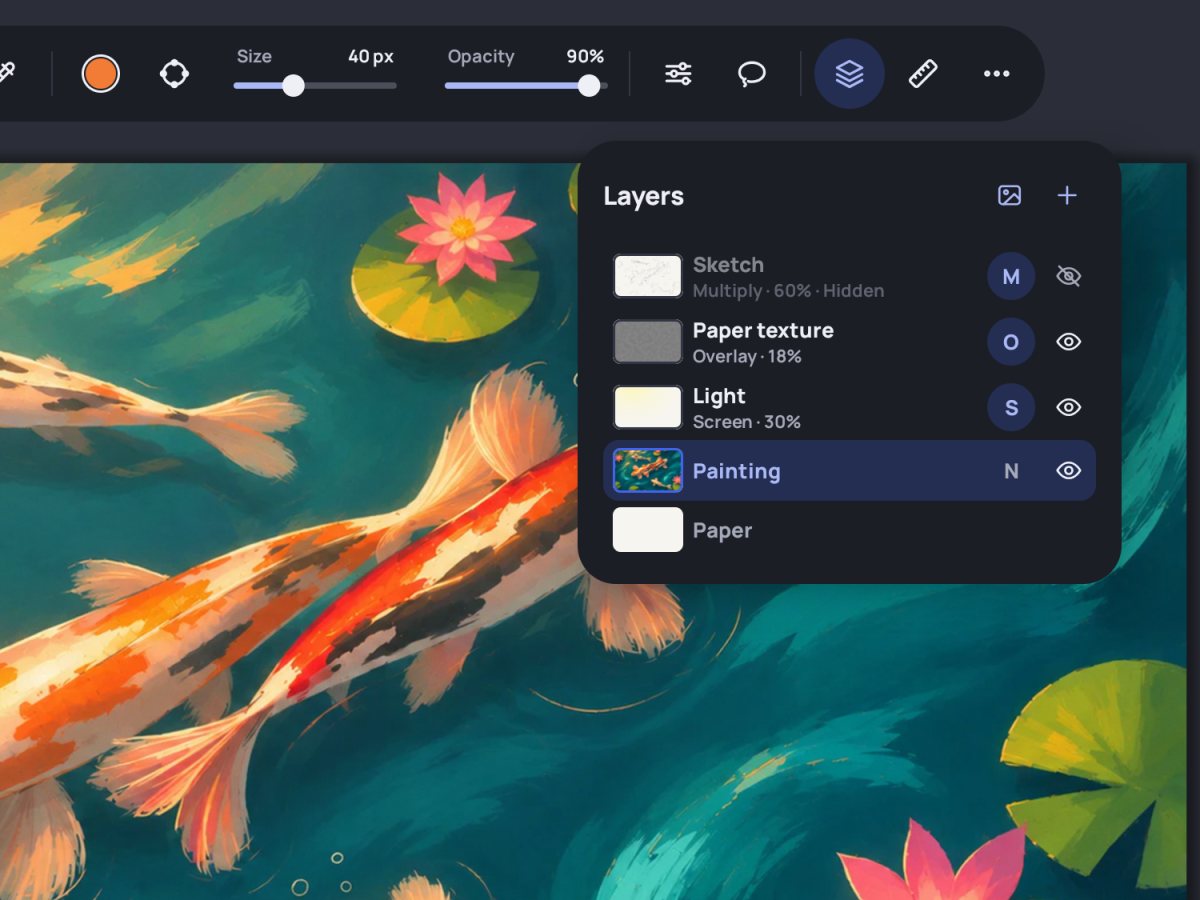
Tap the letter next to a layer. Each mode tells you what it does.
- 6
Finishing touch
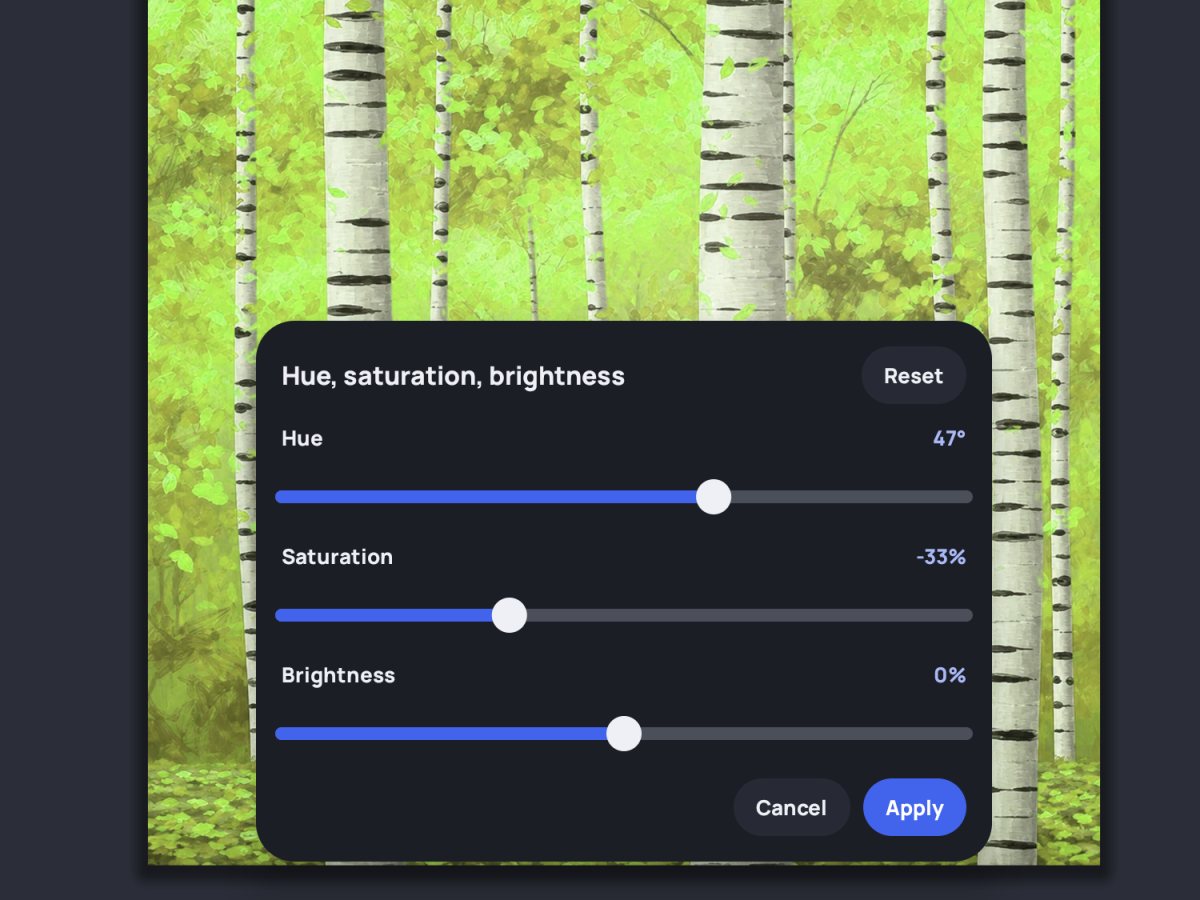
Soften edges with Smudge and tune colors in Adjustments. To move something, select it and tap Move & stretch.
- 7
Export or share it
Export your painting, or a video of it, and share it with the world.
Your tools
What each button in the top bar does.
Publish your work
Share it as a picture, with all its layers, or as a video of it being made.
PNG
Every pixel kept, sharp for posting online.
JPG
A smaller file, with a quality you choose from 1 to 5.
PSD
Every layer kept, to carry on in other painting apps.
Time-lapse video
Your artwork being made, at full length or in 40 seconds.
Or save it straight to your tablet's Pictures.
Device check
Sketchemy Ready?
Pick your tablet's brand and model to see how well Sketchemy runs on it.
Perfect for Sketchemy
What it needs
Android 12 or newer
Settings › About tablet shows your version.
4 GB of memory
More memory and a faster chip make it run smoother.
Google Play
Tablets without it, like Amazon Fire, can't get Sketchemy.
Best with a pen
One that senses pressure, like the S Pen.
Fresh paint
Gallery
A growing wall of artwork. Send in yours, and it could hang here too.
Share your work
Proud of your work?
We’d love to showcase it here, with your name and a link to your portfolio.
Here to help
Support
A question, a bug or an idea? We read every message.
What’s new
Changelog
Every Sketchemy update, newest first.